Let’s……Access Moodle™
August 7, 2018 ©2018, Susan Pontz, SS.C.M.1
To login directly to the Moodle™ site: https://moodle.ost.edu (please note no “www” in this address).
Click on MyOST on the main menu, then select Students and find the link on that page.
Login
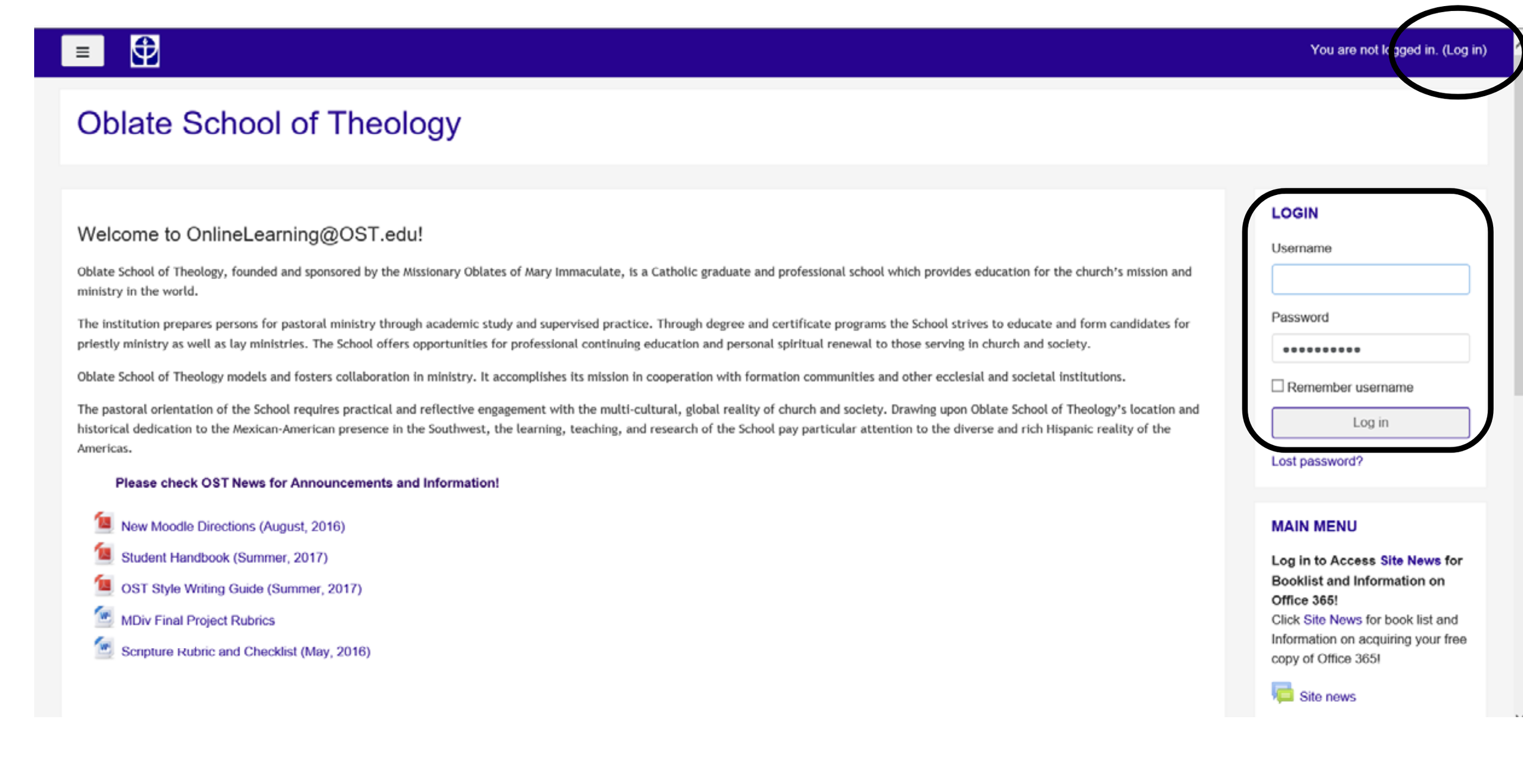
You must login to the site. There are two places you can login: at the top, right hand corner in the blue header or in the login box at the top, right. (Circled in screen shot above).
Enter your username and password in the appropriate boxes. Your username and password are the same as your OST login for your computer and e-mail.
However, do not type “@ost.edu” in the username.
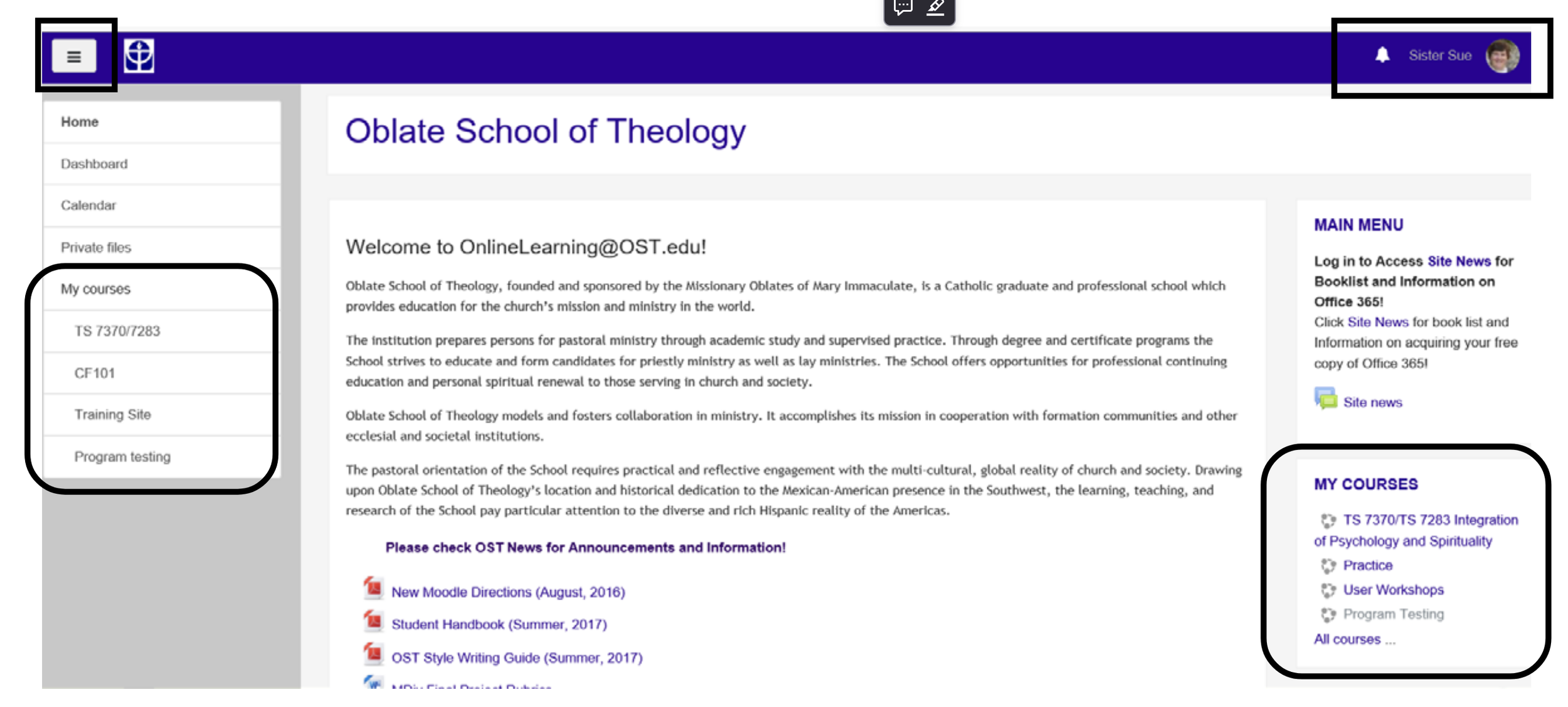
Enrichment and Cross-registration students: Please follow the instructions given to you in the e-mail confirming your registration for login details.Once you are logged in, you should see a confirmation of your login with your name at the top, right of the screen. Additionally, all the courses in which you are registered will appear in two places (encircled below) on each side of the screen. On the left-hand side of the screen (currently located next to the school’s logo) is an icon with three lines on it. If you click that icon, then the navigation panel located directly beneath it will hide; clicking it again shows it.
Disclaimer
Each professor can individualize their course site. Therefore, not every site will be the same. It is up to the professor how the site will be organized. However, these are the most common attributes for the site. What I am suggesting in these notes may not be what your professor has chosen to do. Please contact the professor or me if you have any questions.
Course Organization
Most of the courses are set up in topics. You will notice that all the lectures, handouts, PowerPoint presentations, audio files, and assignments are organized in unit sections. Usually the dates for the unit are listed in each area. In order to access a file, click on its link. You will be prompted to select how you want to open or save the file. This is your computer’s security measure, not OST’s requirement. Follow whatever procedure you usually do when downloading attachments.
Submitting Assignments
Find the link for the assignment, click on the link.
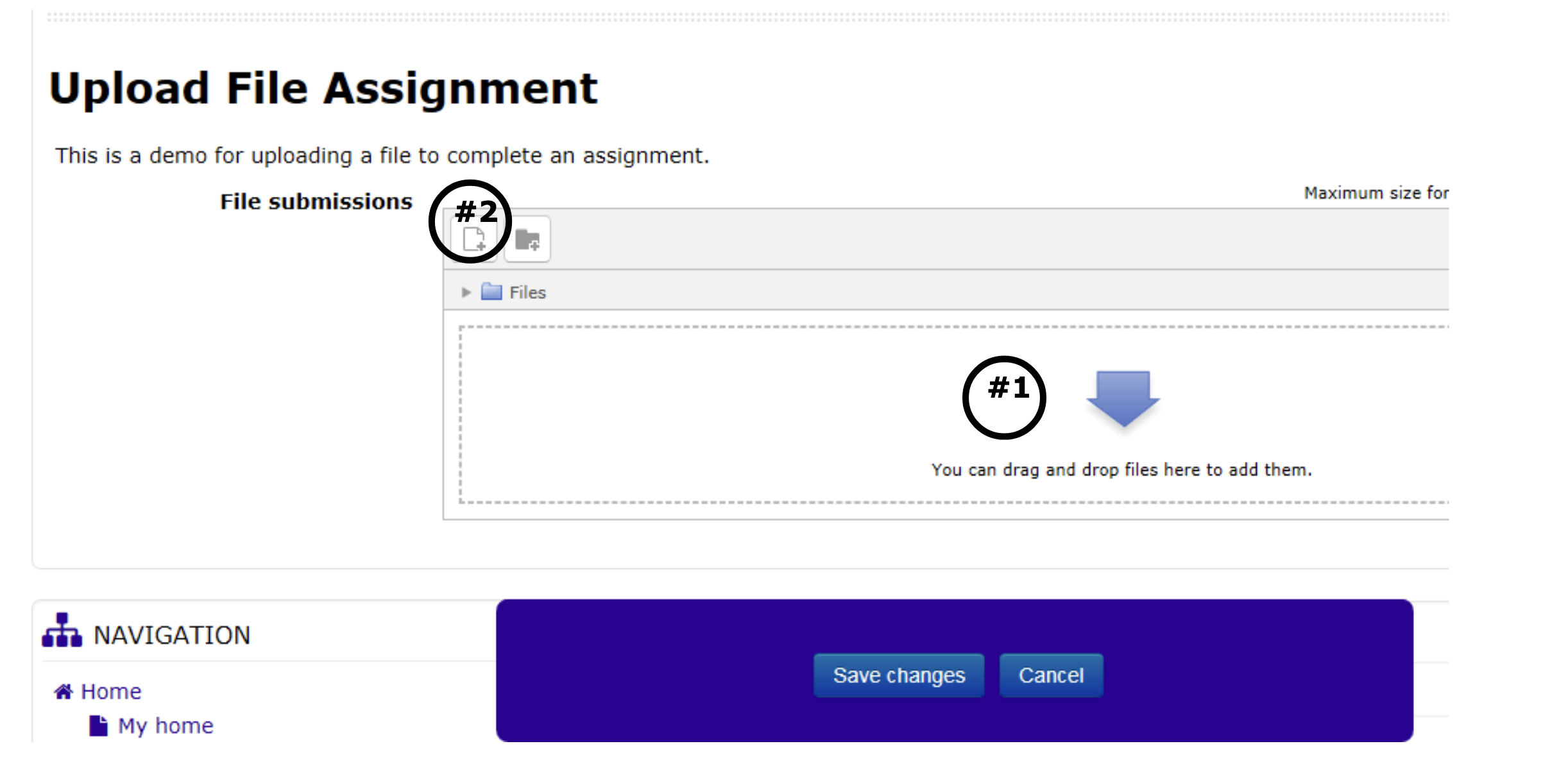
Click on the “Add Submission” button. The following screen appears
If you know how to drag and drop, minimize the file submission screen, find the file you which to submit and drag it into the box where the large blue arrow is. (Marked #1) Otherwise, proceed with step 4.
Click on the Add File button (marked #2) in the above screen shot, choose Upload a File from the choices on the left hand side of the screen, then click Browse to find your file on your hard drive or flash drive. Select the file. You will be returned to the Moodle™ screen and the name of the file should be visible in the text box.
Click on the “Upload this File” button. Once it is uploaded, it is visible on the screen in the area with the blue arrow (marked #1 in the screen shot).
Click Save Changes underneath the dialogue box.
You should see its name listed on the Add Submission screen.
You have successfully submitted the assignment.